
How to Convert PDF to GIF: Web-Optimized Image Extractions
Learn how to render and extract PDF document pages as web-optimized GIF files client-side.
🔧 Interactive Utility Tool
Try the free, 100% secure client-side tool associated with this guide. No registration required.
How to Convert PDF to GIF: Web-Optimized Page Extraction
Managing digital documents requires strict compliance with formatting and font subsets. Here is a direct definition of this standard.
PDF (Portable Document Format) is a digital document standard designed to preserve formatting across all devices. Modern PDF operations utilize local browser APIs to merge, split, or secure pages without server uploads, protecting document data.
When extracting clean illustrations, simple icons, or line-art documents to be displayed on web platforms, choosing a format that supports transparency and indexing is helpful. Converting PDF to GIF renders pages into lightweight, web-optimized graphic file formats.
Product-Led CTA: Uploading private assets to external servers exposes them to privacy threats. Use our secure, client-side PDF to GIF Converter to render and save pages directly to web-ready GIFs in memory.
⚡ Quick Action: Use the Online Tool
This guide pairs with our free, 100% secure client-side utility tool. Process your files or text instantly in-browser.
📐 GIF Format vs. Raster JPG/PNG/WEBP Images
When deciding on image output types for document extraction: * GIF (Graphics Interchange Format): A bitmap image format that uses LZW compression and supports up to 8 bits per pixel (a palette of 256 colors). Excellent for simple line graphics, logos, and animations. * JPG/PNG/WEBP: Supports 24-bit color depth. PNG and WEBP provide superior transparency and gradient rendering, but GIF is a widely supported alternative for retro platforms and simple UI assets.
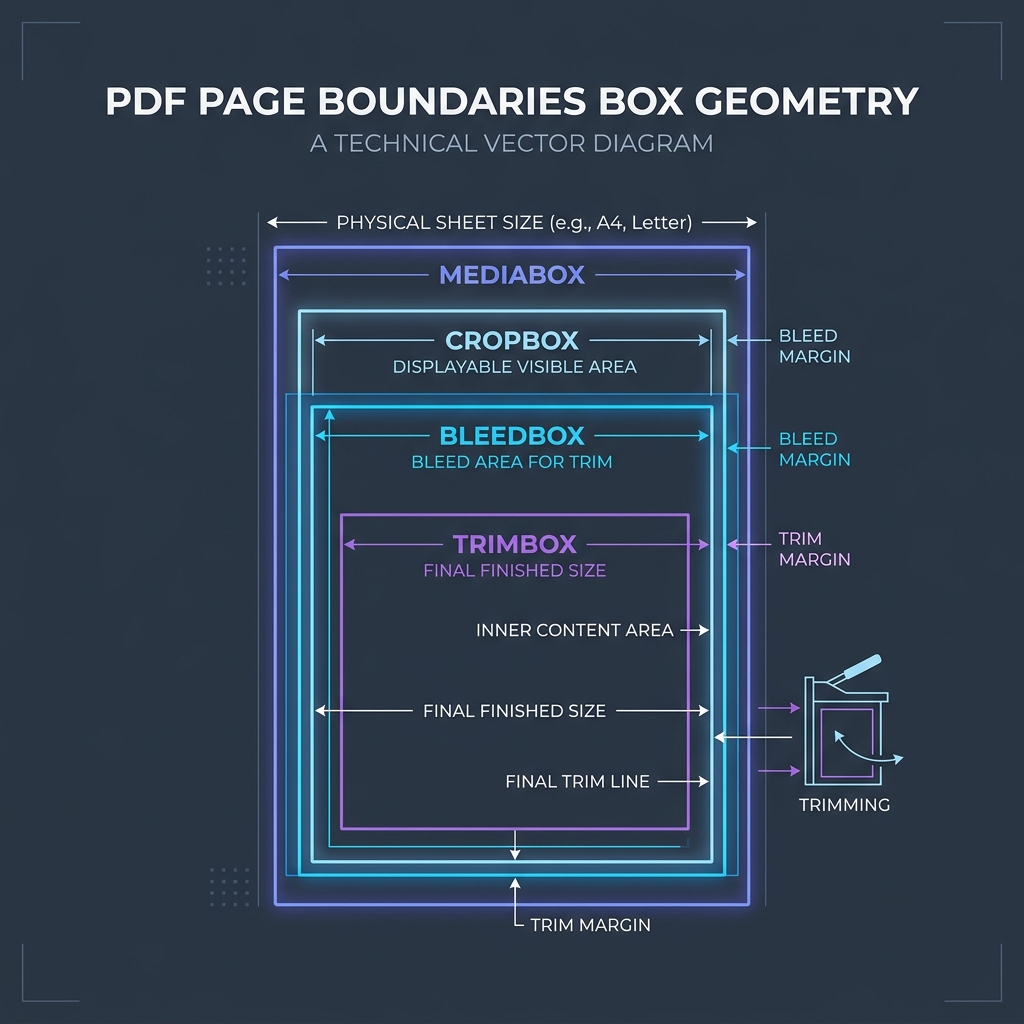
📊 PDF Page Coordinate System Reference
Below is a layout box coordinate diagram outlining default PDF page margins and boundaries:
🛠️ Step-by-Step GIF Page Extraction
To extract your pages to GIF: 1. Select Document: Upload your PDF file to our online converter. 2. Toggle Format: Choose GIF as the target image format. 3. Choose resolution: Select 1.0x scale (standard resolution) to keep color tables compact. 4. Read PDF Page Canvas Rasterizing and Lossy vs Lossless Image Compression to learn more. 5. Convert PDF to GIF files locally with our PDF to GIF Converter.
Join the Urbandigistore Hub
Subscribe to receive premium developer cheat sheets, advanced conversion techniques, and campaign optimization checklists. Zero spam, unsubscribe anytime.
🚀 Launch Interactive Tool
Ready to test this directly? Open the secure web tool in a new sandbox tab.