
PDF Page Rendering: Rasterizing Document Pages into High-Fidelity Images
Learn how HTML5 canvas elements and client-side rendering engines rasterize PDF document pages to high-resolution PNG or JPG images.
🔧 Interactive Utility Tool
Try the free, 100% secure client-side tool associated with this guide. No registration required.
PDF Page Rendering: Rasterizing to Canvas Images
Managing digital documents requires strict compliance with formatting and font subsets. Here is a direct definition of this standard.
PDF (Portable Document Format) is a digital document standard designed to preserve formatting across all devices. Modern PDF operations utilize local browser APIs to merge, split, or secure pages without server uploads, protecting document data.
Converting PDF pages into standard image formats (like JPG or PNG) is a common requirement for presentations and web embeds. By using client-side libraries, you can rasterize vector PDF pages directly onto HTML5 Canvas elements to generate clean images locally.
Product-Led CTA: Do not upload private documents to third-party web servers for file conversion. Use our local, secure PDF to Image Converter to render pages directly to images in memory.
⚡ Quick Action: Use the Online Tool
This guide pairs with our free, 100% secure client-side utility tool. Process your files or text instantly in-browser.
⚙️ How Client-Side PDF Rasterization Works
To convert a PDF page to an image without a server:
- Parsing Vector Data: A browser-based parser (like Mozilla's
PDF.js) reads the PDF binary data, builds a document structure, and extracts the vector paths, text, and embedded fonts for a target page. - Viewport Mapping: The parser maps the page dimensions (measured in points where 72 points = 1 inch) to a target screen pixel scale (e.g., 150 DPI or 300 DPI).
- Canvas Drawing: The vector elements are drawn onto an invisible HTML5
<canvas>element. - Rasterization: The canvas content is converted into an image data URL using
canvas.toDataURL('image/jpeg')and downloaded as a file.
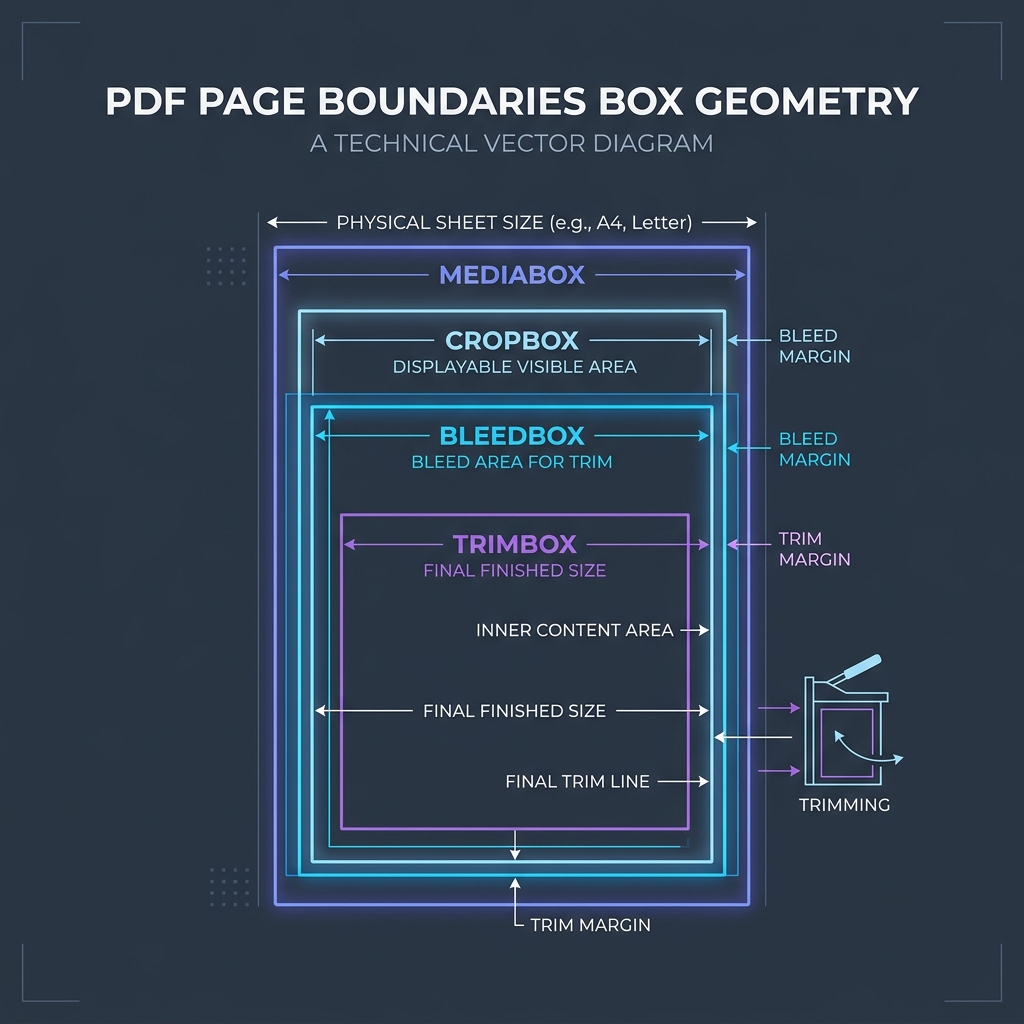
📊 Document Sizing and Page Reference
Below is a page coordinate reference diagram illustrating standard PDF layout boundaries:
🛡️ Best Practices for PDF to Image Conversions
To ensure high-quality raster outputs: * Scale for Clarity: Use a scale factor of at least 2.0x (resulting in a high-DPI rendering) to keep text sharp and readable after rasterization. * Select PNG for Text Layouts: Convert pages to PNG if they contain detailed line art or text to prevent JPEG compression artifacts. * Read How to Split PDF Pages Locally and How to Merge PDFs Locally to learn more. * Transcode pages to JPEG or PNG locally using our browser-based PDF to Image Converter.
Join the Urbandigistore Hub
Subscribe to receive premium developer cheat sheets, advanced conversion techniques, and campaign optimization checklists. Zero spam, unsubscribe anytime.
🚀 Launch Interactive Tool
Ready to test this directly? Open the secure web tool in a new sandbox tab.