
How to Convert WAV to MP3: Audio Bitrate and Compression Basics
Learn how to convert WAV audio files to compressed MP3 format locally while optimizing bitrates and audio fidelity.
🔧 Interactive Utility Tool
Try the free, 100% secure client-side tool associated with this guide. No registration required.
How to Convert WAV to MP3: Compression Basics
Managing media files requires converting between visual and auditory streams. Here is a guide on how audio extraction works.
An audio converter is a tool that decodes a source audio file (like WAV or M4A) and re-encodes it into another format. Using modern browser APIs, transcoding can be done entirely on the client side.
WAV files are standard uncompressed audio formats that offer maximum sound quality but take up a significant amount of storage space. To share your recordings easily or stream them on web pages, converting them to compressed MP3 format is a common requirement.
Product-Led CTA: Converting files online shouldn't require exposing your audio clips to cloud servers. Use our secure, client-side WAV to MP3 Converter to transcode audio formats in memory.
⚡ Quick Action: Use the Online Tool
This guide pairs with our free, 100% secure client-side utility tool. Process your files or text instantly in-browser.
📐 WAV vs. MP3 Bitrate Guidelines
To convert WAV to MP3 while preserving audio clarity: * Constant Bitrate (CBR): Encodes audio at a fixed bitrate (e.g., 320 kbps). This offers consistent, predictable quality and file sizes. * Variable Bitrate (VBR): Adjusts the bitrate dynamically depending on the complexity of the sound (e.g., increasing bitrate for complex musical segments and lowering it during silence). This offers the best quality-to-file-size ratio.
📊 Codec Entropy Reference
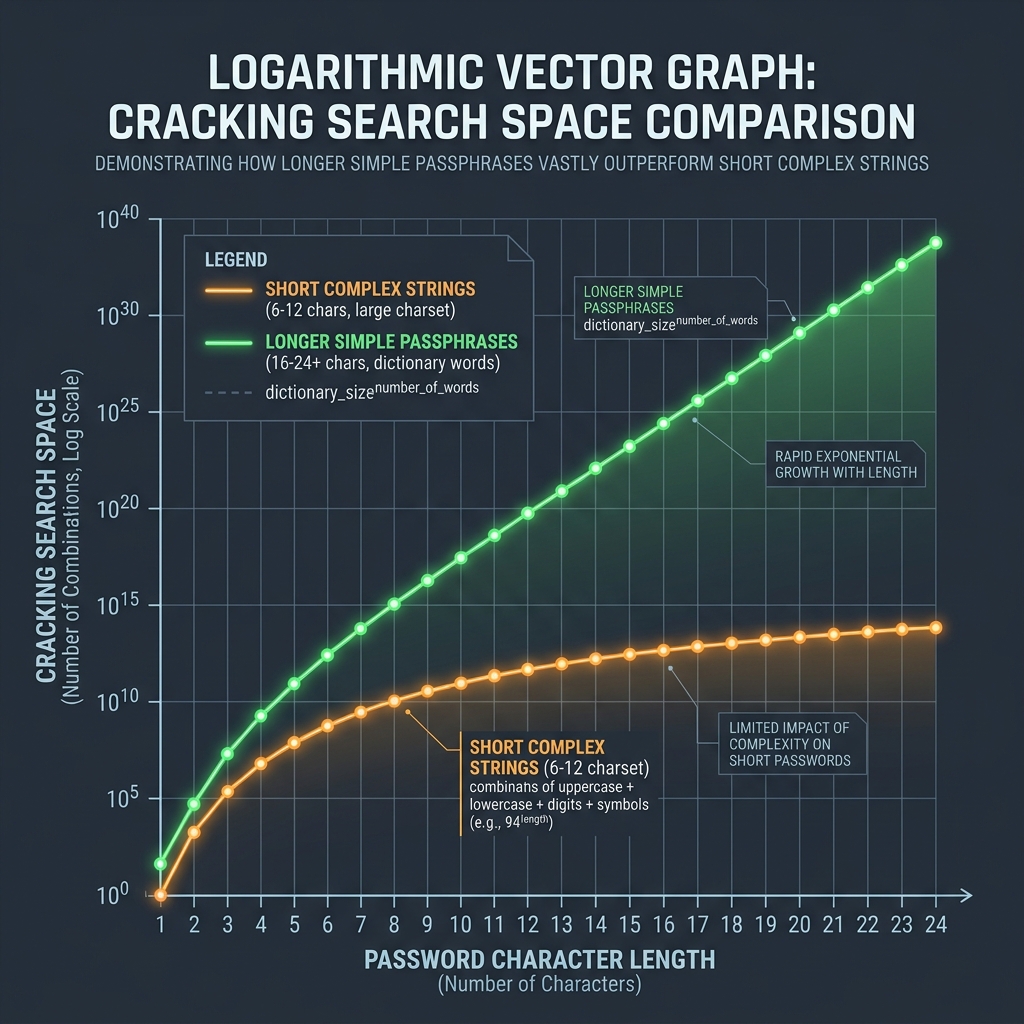
Compressing files reduces data entropy. Refer to the logarithmic curve below to see how encoding complexities scale:
🛠️ Step-by-Step Transcoding Guide
To convert your files locally: 1. Load the Audio: Open our client-side converter in your browser. 2. Select Bitrate: Choose your target quality (we recommend VBR or 320 kbps CBR for music). 3. Transcode: Click convert to decode the WAV binary data and compile the MP3 file in memory. 4. Read Universal Audio Codecs and Lossy vs Lossless Compression to learn more. 5. Convert WAV to MP3 instantly using our local WAV to MP3 Converter.
Join the Urbandigistore Hub
Subscribe to receive premium developer cheat sheets, advanced conversion techniques, and campaign optimization checklists. Zero spam, unsubscribe anytime.
🚀 Launch Interactive Tool
Ready to test this directly? Open the secure web tool in a new sandbox tab.