
Demystifying QR Code Quiet Zones: The Vital Margin for Scan Reliability
Learn about the QR code Quiet Zone requirements, explore why solid margins are necessary, and discover how to design scannable templates.
🔧 Interactive Utility Tool
Try the free, 100% secure client-side tool associated with this guide. No registration required.
Demystifying QR Code Quiet Zones: The Vital Margin
Deploying custom QR codes in campaigns requires strict adherence to scanner specifications. Here is how grid contrast works.
A QR Code is a two-dimensional barcode storing data inside a grid of dark and light modules. Scanners decode this grid using error-correction math, allowing for fast scannability even when the code is partially damaged.
When designing QR codes for packaging, advertisements, or digital screens, designers often try to crop the border as tightly as possible to save space. However, doing so regularly breaks the code's scannability. This border area is known as the Quiet Zone, and it is one of the most critical structural requirements in the QR code specification.
In this guide, we'll explain quiet zone sizing rules, analyze why they are necessary, and detail safety design standards.
Product-Led CTA: Creating scannable QR codes requires compliant borders and high contrast. Generate web-ready graphics instantly using our free, browser-based Custom QR Code Generator with custom error correction.
⚡ Quick Action: Use the Online Tool
This guide pairs with our free, 100% secure client-side utility tool. Process your files or text instantly in-browser.
📐 Sizing the Quiet Zone: The 4-Module Rule
The Quiet Zone is a solid, blank margin that completely surrounds the four outer edges of the QR code. The QR specification dictates that the Quiet Zone must be at least 4 modules (dots) wide on all sides:
- Grid Reference: If your QR code uses modules that are $2 \text{mm}$ wide, the Quiet Zone must be at least $8 \text{mm}$ wide.
- Version 1 ($21 \times 21$): Needs a 4-module margin, expanding the virtual footprint to $29 \times 29$ modules.
- Color Rule: The Quiet Zone must be the exact same color as the background modules (typically pure white).
📊 QR Code Structure Reference
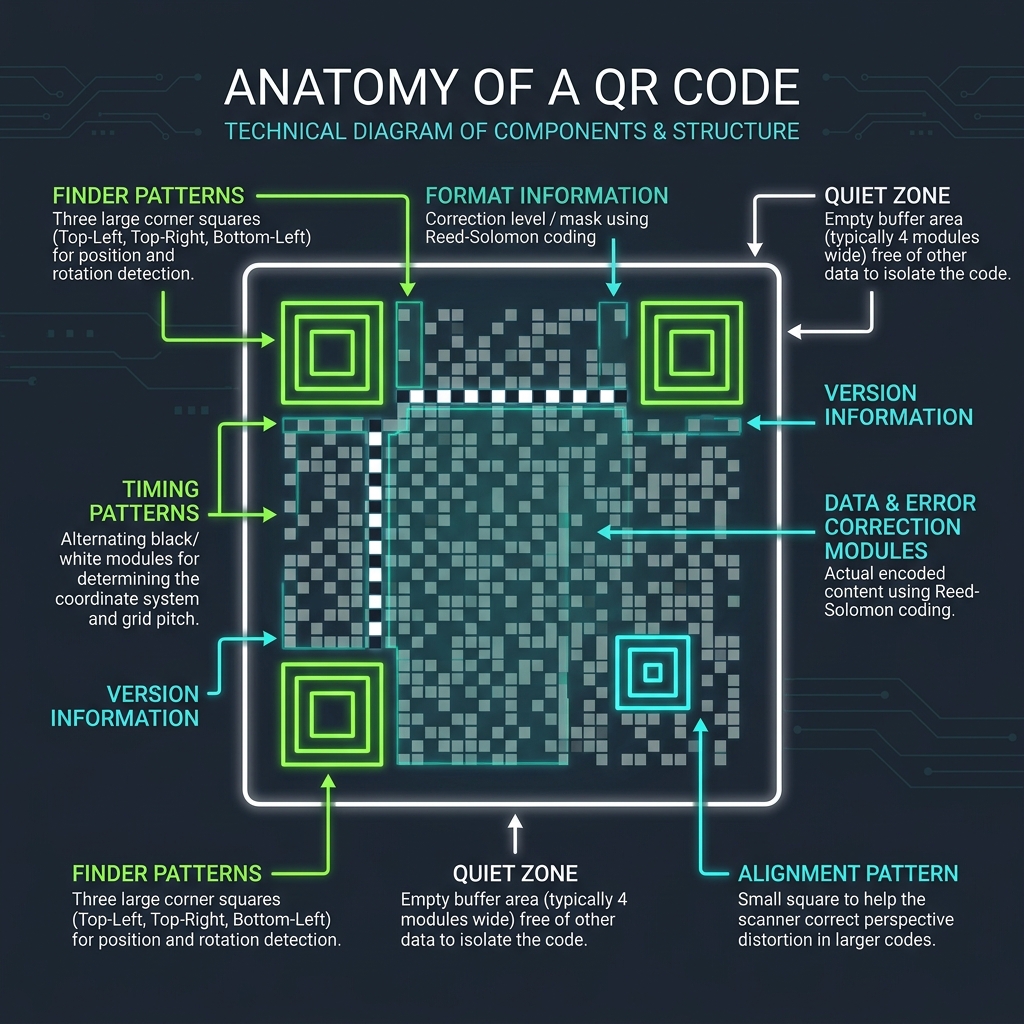
Camera sensors locate the finder patterns by looking for the transition between light and dark regions. Here is a reference diagram highlighting these structural coordinates:
🔍 Why is the Quiet Zone Vital?
When a smartphone camera scans a QR code: 1. The scanner looks for the three large corner squares (Finder Patterns). 2. It uses the contrast between the dark finder patterns and the light Quiet Zone to locate the outer boundaries of the code. 3. If text, logos, or graphic elements sit directly against the finder patterns, the scanner cannot distinguish the boundaries, causing the scan to fail.
🎨 Best Practices for Styling Borders
To keep your QR codes scannable:
- Avoid Tight Borders: If adding a custom frame (e.g., "Scan Me!"), ensure there is a clear, solid quiet zone margin of white space between the outer QR modules and the inner frame border.
- (See our QR Code Naming & Campaign Tracking Guide for details).
- Choose Proper Contrast: Maintain a high contrast ratio between the foreground dots and background quiet zone. (See QR Code Contrast Customization Guide).
- Create Custom QR Codes: Paste your link into our browser-based Custom QR Code Generator to select error correction levels and compile clean, scannable files.
Join the Urbandigistore Hub
Subscribe to receive premium developer cheat sheets, advanced conversion techniques, and campaign optimization checklists. Zero spam, unsubscribe anytime.
🚀 Launch Interactive Tool
Ready to test this directly? Open the secure web tool in a new sandbox tab.