
How to Convert GIF to PDF: Lossless Image Compilation Guidelines
Learn how to compile and combine multiple GIF images into a standard formatted PDF document layout.
🔧 Interactive Utility Tool
Try the free, 100% secure client-side tool associated with this guide. No registration required.
How to Convert GIF to PDF: Image Compilation Guidelines
Managing digital documents requires strict compliance with formatting and font subsets. Here is a direct definition of this standard.
PDF (Portable Document Format) is a digital document standard designed to preserve formatting across all devices. Modern PDF operations utilize local browser APIs to merge, split, or secure pages without server uploads, protecting document data.
If you are compiling a brochure of simple graphics, scanned forms, or icons stored in Graphics Interchange formats, organizing them into a single file is key. Converting GIF to PDF compiles these images into standard formatted document pages without lossy quality degradation.
Product-Led CTA: Do not risk uploading your private graphics to online cloud transcoders. Combine your files safely in memory using our free, client-side GIF to PDF Converter with custom layouts.
⚡ Quick Action: Use the Online Tool
This guide pairs with our free, 100% secure client-side utility tool. Process your files or text instantly in-browser.
📐 Formatting GIF Elements inside PDF Pages
To ensure your compiled indexed images fit standard PDF layouts: * Scale Aspect Ratios: Proportional scaling is required to fit standard A4 or Letter sizes without squishing the graphics. * Adjust Margins: Set page boundaries to accommodate logo elements and maintain margin uniformity. * Prevent Frame Bloat: Ensure the compiler handles animated GIFs by extracting the first frame, rather than bloating document sizes by rendering multiple frame loops.
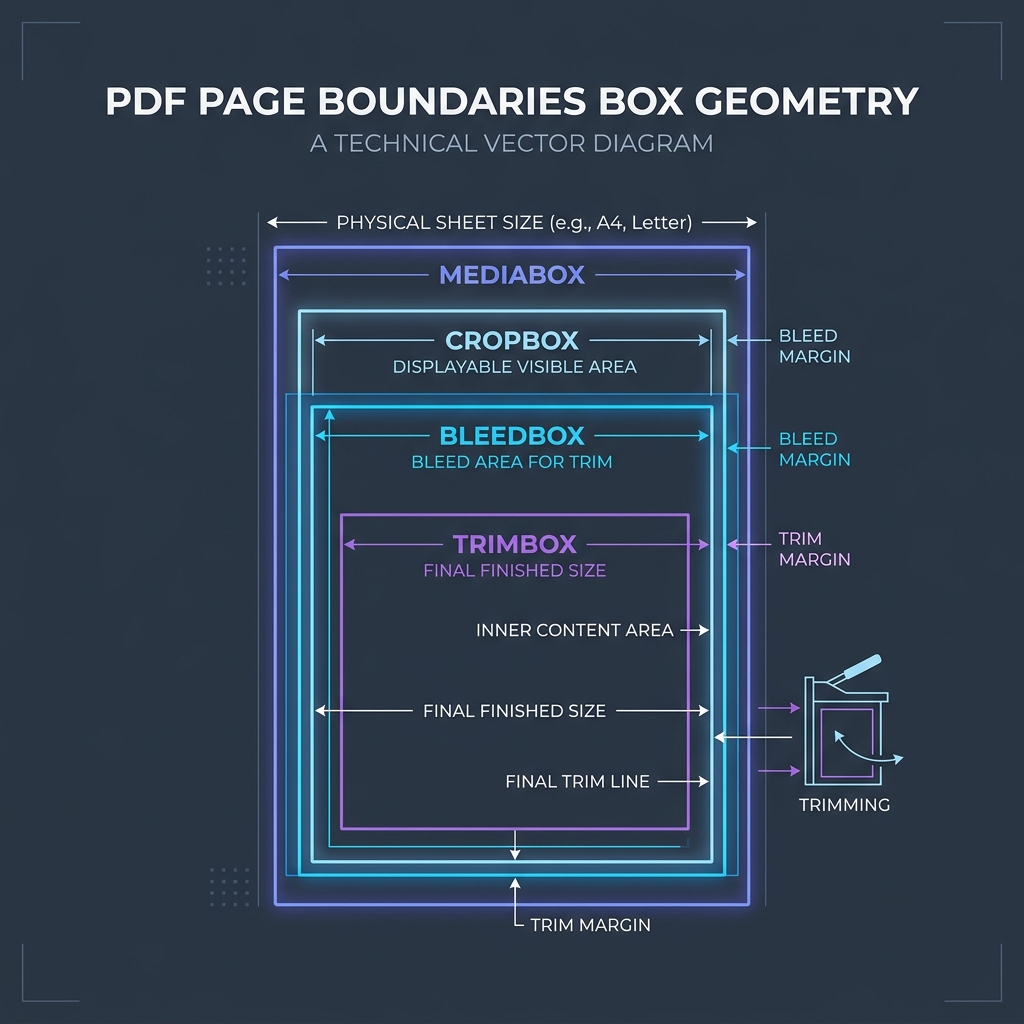
📊 Document Layout Reference
Below is a document layout coordinate chart illustrating standard page borders and layout boxes:
🛠️ Step-by-Step GIF Compilation Guide
To build your PDF locally: 1. Load GIF Files: Drag-and-drop your image assets into our converter. 2. Order Pages: Reorder your page sequence by clicking and dragging preview thumbnails. 3. Adjust Layout: Choose portrait or landscape configurations to match your graphics. 4. Export File: Click compile to output the merged PDF file locally in memory. 5. Read Image to PDF Aspect Ratios and Understanding PDF Margins to learn more. 6. Combine your assets locally with our client-side GIF to PDF Converter.
Join the Urbandigistore Hub
Subscribe to receive premium developer cheat sheets, advanced conversion techniques, and campaign optimization checklists. Zero spam, unsubscribe anytime.
🚀 Launch Interactive Tool
Ready to test this directly? Open the secure web tool in a new sandbox tab.