
Understanding PDF Document Margins: Page Layout and Printing Bounds
Learn about the PDF coordinate system, understand page boxes like MediaBox and CropBox, and discover how to manage page margins.
🔧 Interactive Utility Tool
Try the free, 100% secure client-side tool associated with this guide. No registration required.
Understanding PDF Document Margins: Page Layout & Bounds
Managing digital documents requires strict compliance with formatting and font subsets. Here is a direct definition of this standard.
PDF (Portable Document Format) is a digital document standard designed to preserve formatting across all devices. Modern PDF operations utilize local browser APIs to merge, split, or secure pages without server uploads, protecting document data.
When programmatically manipulating PDFs—whether merging invoices, splitting pages, or generating documents—developers often run into scaling and truncation issues. Content that looks perfect on screen is sometimes cropped or cut off when printed. This happens because PDF page geometry relies on a set of boundaries known as Page Boxes, rather than a simple pixel layout.
In this guide, we'll explain the PDF page box coordinate system, define each page box type, and show how margins affect layouts.
Product-Led CTA: Uploading sensitive contracts to cloud services poses severe privacy risks. Use our free, local Merge PDF Documents Tool or Split PDF Pages Tool to compile and split pages safely in memory.
📐 The PDF Page Boxes Model
The PDF specification defines five distinct boundary boxes to control rendering and printing. These boxes nest within each other to form the page geometry:
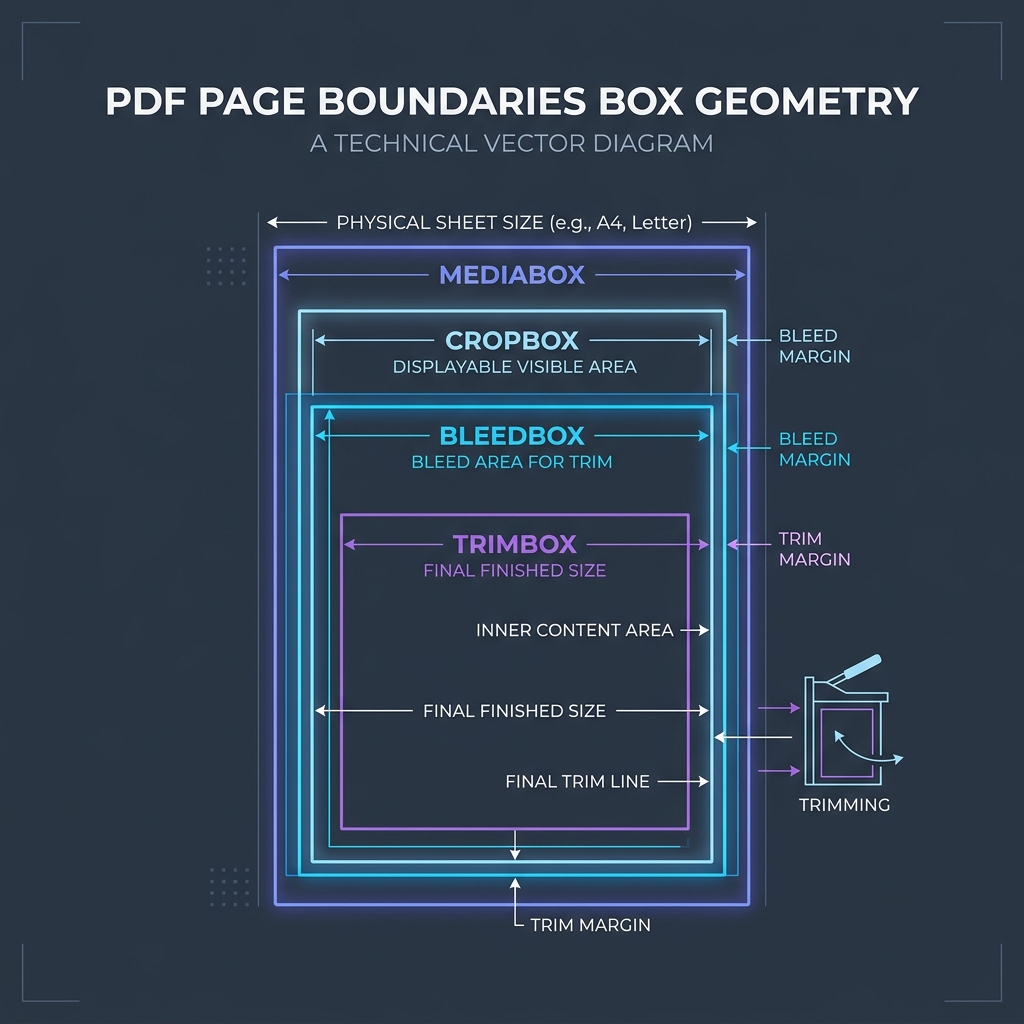
📦 1. MediaBox (The Physical Sheet)
The MediaBox defines the physical size of the page (e.g., A4 or Letter dimensions). It is the largest box and serves as the canvas boundary.
⚡ Quick Action: Use the Online Tool
This guide pairs with our free, 100% secure client-side utility tool. Process your files or text instantly in-browser.
📦 2. CropBox (The Displayable Area)
The CropBox defines the visible region of the page when rendered in PDF viewers. If a PDF has crop marks, the CropBox restricts what is shown on screen. By default, it matches the MediaBox.
📦 3. BleedBox (The Bleed Area)
Used in professional printing. The BleedBox defines the boundary of the page content when printing to the edge of the sheet, allowing a small buffer for cutting.
📦 4. TrimBox (The Final Size)
The TrimBox defines the intended dimensions of the finished page after physical trimming.
🛠️ The PDF Coordinate System and Margins
PDF coordinates are typically measured in points (where $1 \text{ inch} = 72 \text{ points}$). The origin coordinate $(0, 0)$ is located at the bottom-left corner of the MediaBox, which is the opposite of the top-left origin used in HTML Canvas or CSS.
When merging multiple PDFs, if the input files have different CropBox offsets: 1. The merged page might look misaligned. 2. Text or headers could get truncated if the target page dimensions aren't adjusted. 3. To fix this, developers must read the CropBox coordinates of each source page and apply uniform coordinate translation vectors.
🚦 Streamlining Your PDF Operations
Managing page structures requires clean, secure processing: * To join documents together: Use our client-side Merge PDF Documents Tool which translates coordinates locally to prevent alignment issues. * To extract pages: Use our secure Split PDF Pages Tool to extract ranges without losing metadata.
To learn more about range strings, read Understanding PDF Page Splitting Range Syntax or see How to Merge PDFs Online Safely.
Join the Urbandigistore Hub
Subscribe to receive premium developer cheat sheets, advanced conversion techniques, and campaign optimization checklists. Zero spam, unsubscribe anytime.
🚀 Launch Interactive Tool
Ready to test this directly? Open the secure web tool in a new sandbox tab.