
How to Convert PDF to JPG: High-Resolution Page Extraction Guide
Learn how to render and convert PDF document pages into high-resolution JPG images client-side.
🔧 Interactive Utility Tool
Try the free, 100% secure client-side tool associated with this guide. No registration required.
How to Convert PDF to JPG: Page Extraction Guide
Managing digital documents requires strict compliance with formatting and font subsets. Here is a direct definition of this standard.
PDF (Portable Document Format) is a digital document standard designed to preserve formatting across all devices. Modern PDF operations utilize local browser APIs to merge, split, or secure pages without server uploads, protecting document data.
If you need to extract pages from a PDF document to insert them into presentations or post them on social media, converting the pages to JPG format is the most compatible option. By using client-side rendering engines, you can complete this process securely in your browser.
Product-Led CTA: Uploading private documents to third-party servers exposes them to data privacy risks. Use our free, local PDF to JPG Converter to render pages directly to images in memory.
⚡ Quick Action: Use the Online Tool
This guide pairs with our free, 100% secure client-side utility tool. Process your files or text instantly in-browser.
📐 Why Convert PDF to JPG?
Converting document pages to image files provides several benefits: * Universal Viewing: JPG images can be viewed instantly on any device without requiring a PDF reader app. * Easy Sharing: Image files are easily embedded in emails, web pages, and presentation slides. * Page-by-Page Control: You can extract only the specific pages you need, rather than sharing the entire multi-page document.
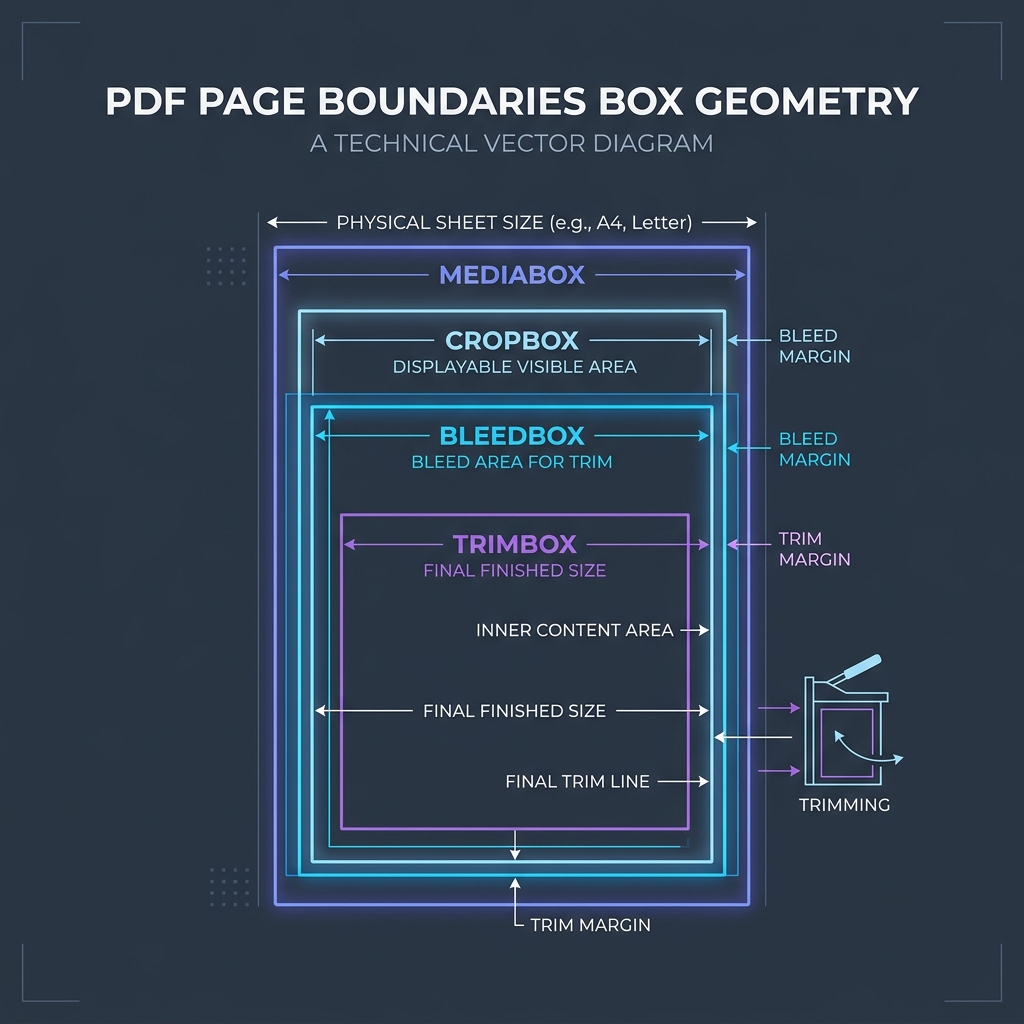
📊 PDF Document Structure Reference
Below is a diagram illustrating the coordinate layout of PDF document pages and boundaries:
🛠️ Step-by-Step Conversion Guidelines
To extract PDF pages as JPG images: 1. Open the Tool: Select or drag-and-drop your PDF file into our converter. 2. Choose Resolution: Select 2.0x scale (high-DPI) to ensure that fine text and signatures remain legible. 3. Download ZIP: Click the generate button to compile all pages into a single ZIP archive. 4. Read PDF Page Canvas Rendering and How to Split PDF Pages to learn more. 5. Extract your pages locally with our client-side PDF to JPG Converter.
Join the Urbandigistore Hub
Subscribe to receive premium developer cheat sheets, advanced conversion techniques, and campaign optimization checklists. Zero spam, unsubscribe anytime.
🚀 Launch Interactive Tool
Ready to test this directly? Open the secure web tool in a new sandbox tab.