
Why Is My QR Code Not Working? How to Fix Scan Failures
Troubleshoot why your QR code is not scanning, from quiet zone violations to low contrast ratios and data density overload.
🔧 Interactive Utility Tool
Try the free, 100% secure client-side tool associated with this guide. No registration required.
Why Is My QR Code Not Working? Troubleshooting
Deploying custom QR codes in campaigns requires strict adherence to scanner specifications. Here is how grid contrast works.
A QR Code is a two-dimensional barcode storing data inside a grid of dark and light modules. Scanners decode this grid using error-correction math, allowing for fast scannability even when the code is partially damaged.
If your QR code is not working when scanned with a smartphone or scanner, it is usually due to a few common design errors. This guide outlines how to identify and fix these scan failures.
Product-Led CTA: Do not risk launching campaigns with broken barcodes. Use our free Custom QR Code Generator to create compliant codes with built-in quiet zones and error correction.
⚡ Quick Action: Use the Online Tool
This guide pairs with our free, 100% secure client-side utility tool. Process your files or text instantly in-browser.
⚙️ Core Reasons for QR Code Scan Failures
QR codes fail to scan due to a few specific design violations:
- Quiet Zone Violations: Scanners need a blank, high-contrast margin around the grid to identify the code. If text, graphics, or borders overlap this boundary, the scanner cannot read the code.
- Low Color Contrast: Scanners depend on distinguishing between dark and light modules. Using low-contrast color combinations (like light grey on white or inverted dark backgrounds) will fail.
- Data Density Overload: Packing long URLs or too much text into a QR code creates a dense grid with very small modules. If printed small, these modules blur together.
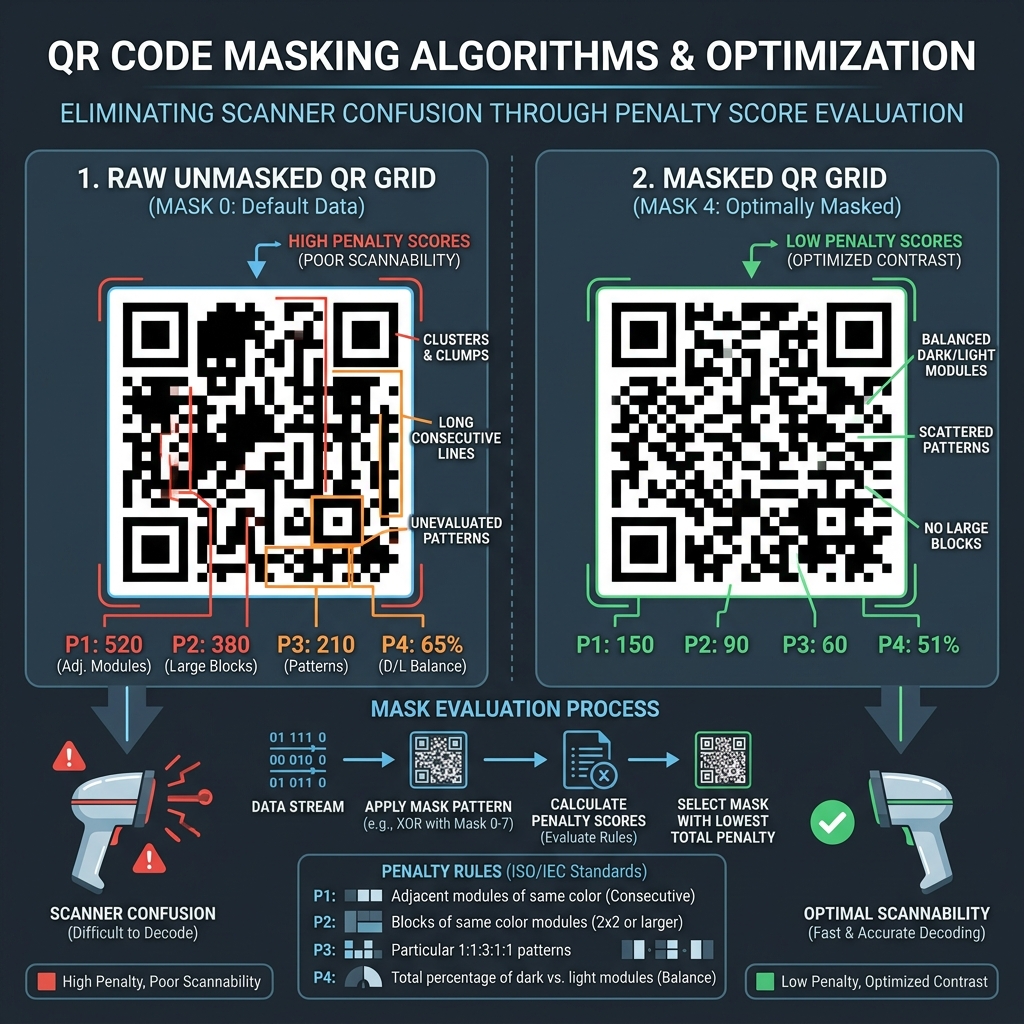
📊 QR Code Quiet Zone Alignment Reference
Below is a layout illustrating quiet zone boundaries and finder patterns:
🛡️ Step-by-Step Troubleshooting Checklist
To fix a non-scanning QR code: * Enlarge the Quiet Zone: Keep a clear space of at least 4 modules wide on all sides of the code. * Shorten Destination URLs: Use our Campaign UTM Link Builder to format clean, short URLs before encoding them to reduce grid complexity. * Verify Contrast: Ensure your foreground modules are significantly darker than the background (or vice versa). * Read QR Code quiet zones scan reliability and QR Code Error Correction Levels to learn more.
Join the Urbandigistore Hub
Subscribe to receive premium developer cheat sheets, advanced conversion techniques, and campaign optimization checklists. Zero spam, unsubscribe anytime.
🚀 Launch Interactive Tool
Ready to test this directly? Open the secure web tool in a new sandbox tab.